A job interview tracker for Mac.
Prep, contacts, and the whole history of an application sit on the application itself. Open the role the morning of the interview and everything you need is already there.
 $4.99, one-time purchase · No account needed · macOS 26.5 or later
Published · Updated
What is a job interview tracker?
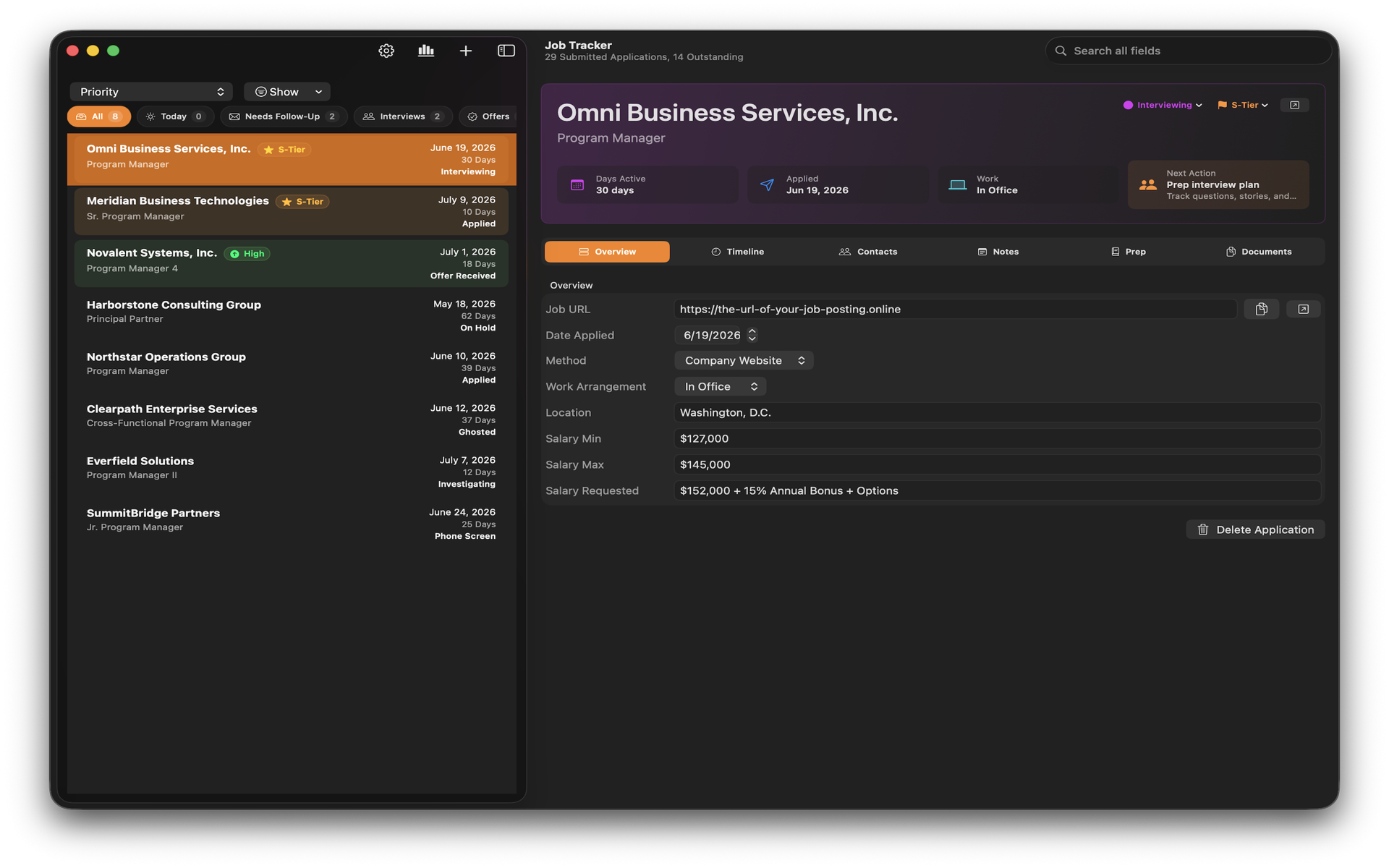
A job interview tracker is one place to keep everything an interview needs: where the application stands, who you’re meeting, what was said last time, and the prep you wrote for this role. Job Tracker is a job interview tracker for Mac, where the prep, the contacts, and the timeline all live on the application they belong to.
Three things an interview needs
Prep, people, and history. Most job searches spread those across a document, a contacts app, and an email thread. Here’s how Job Tracker keeps them together.
The prep, written for this role
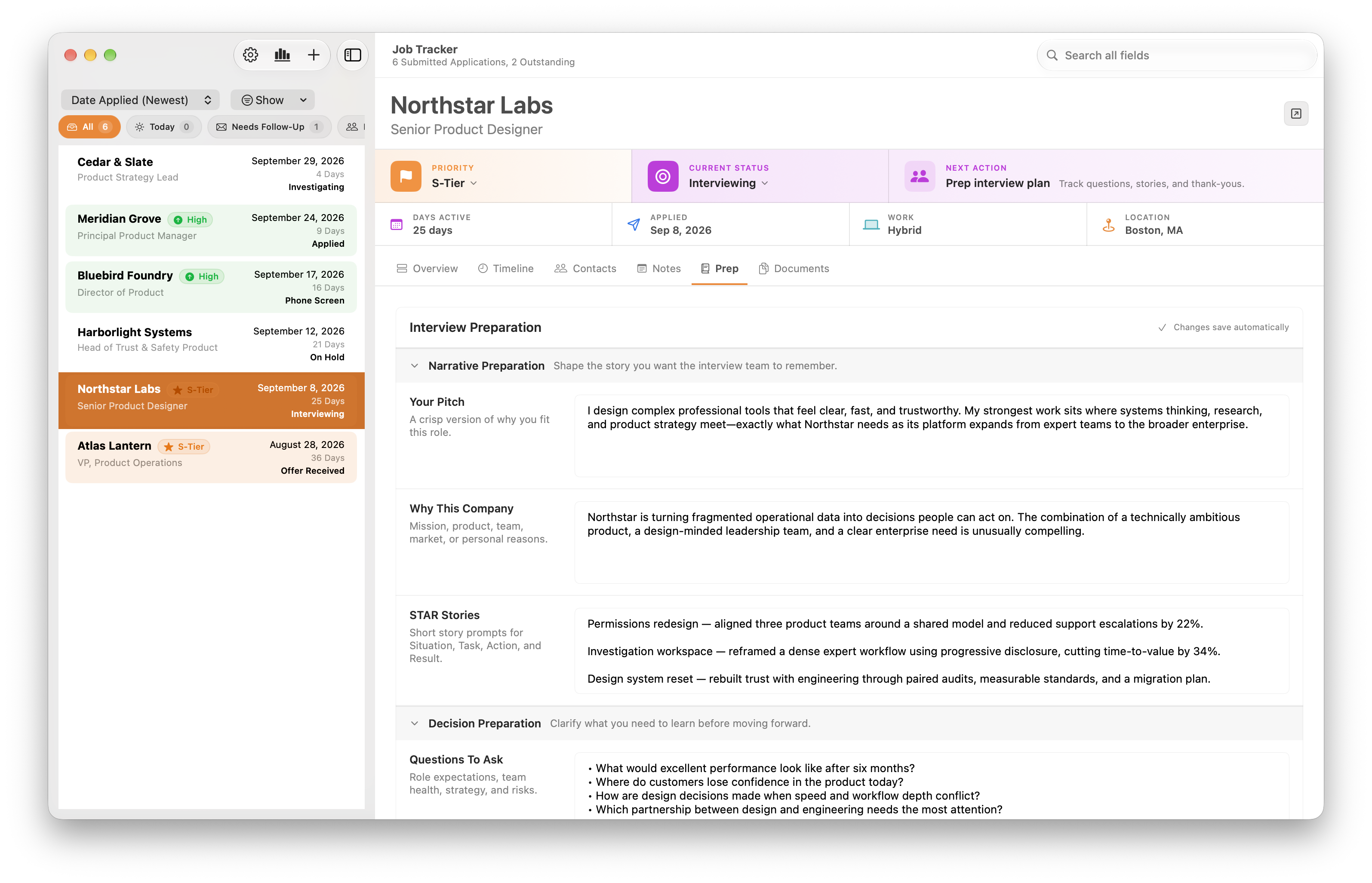
The Prep tab is where you think before you talk. Narrative preparation holds your pitch, a crisp version of why you fit this job, and why this company, the mission or team reason you’re here. STAR stories give you short prompts for situation, task, action, and result, so the examples you want to tell are ready instead of improvised.
Decision preparation is the other half: the questions you want to ask about expectations, team health, strategy, and risks. You’re interviewing them too. Changes save as you type.
The people you’re meeting
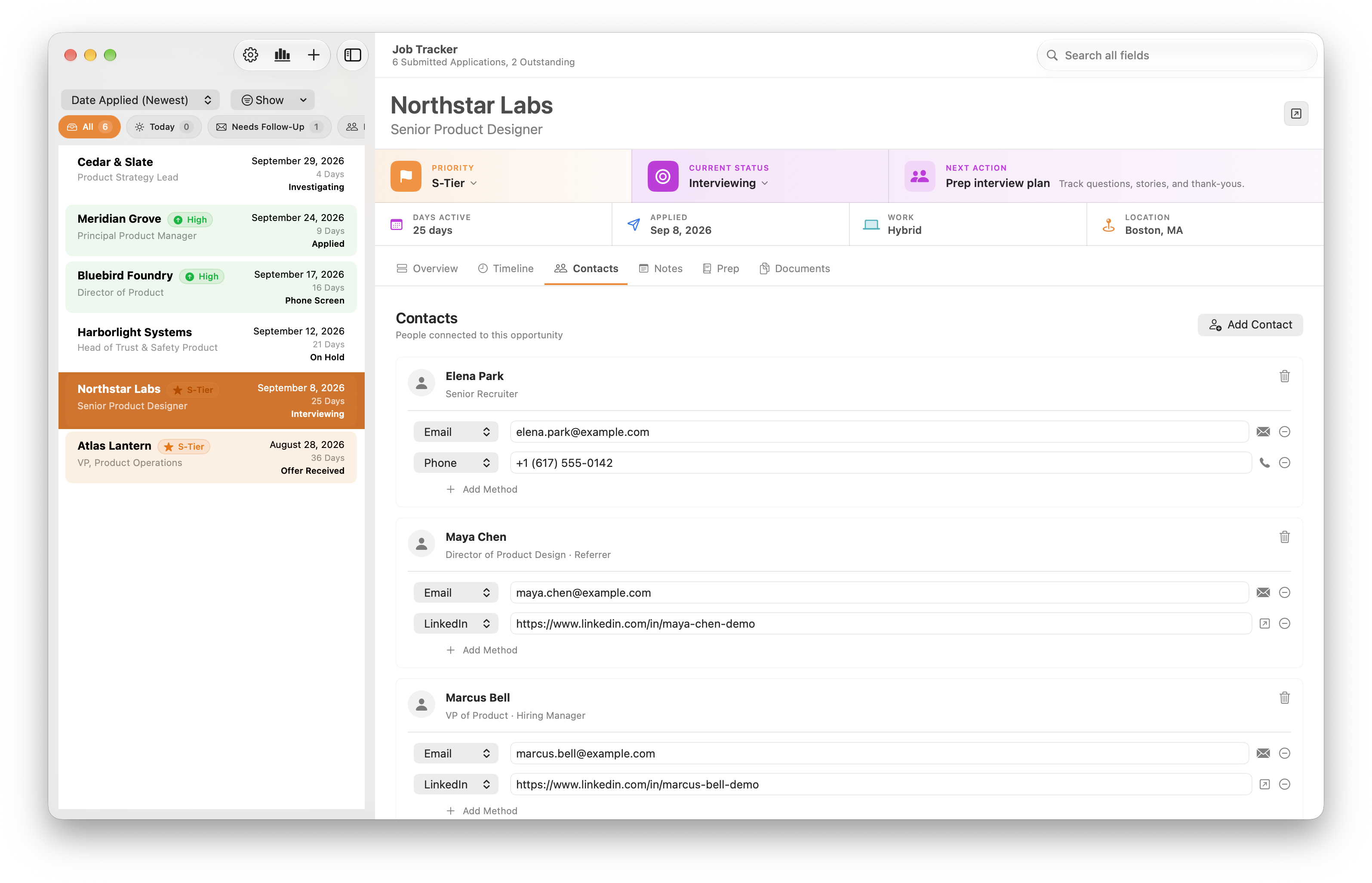
Contacts belong to the application, not to a separate address book. Each person gets their name, their role, and how you reach them, with email, phone, and LinkedIn as separate methods you can add to. A referral is marked as one, and the hiring manager is labeled, so you know who is who when three names land in your calendar.
Before a round, open Contacts and you have the whole panel, with the mail and call buttons right there.
The timeline of what’s happened
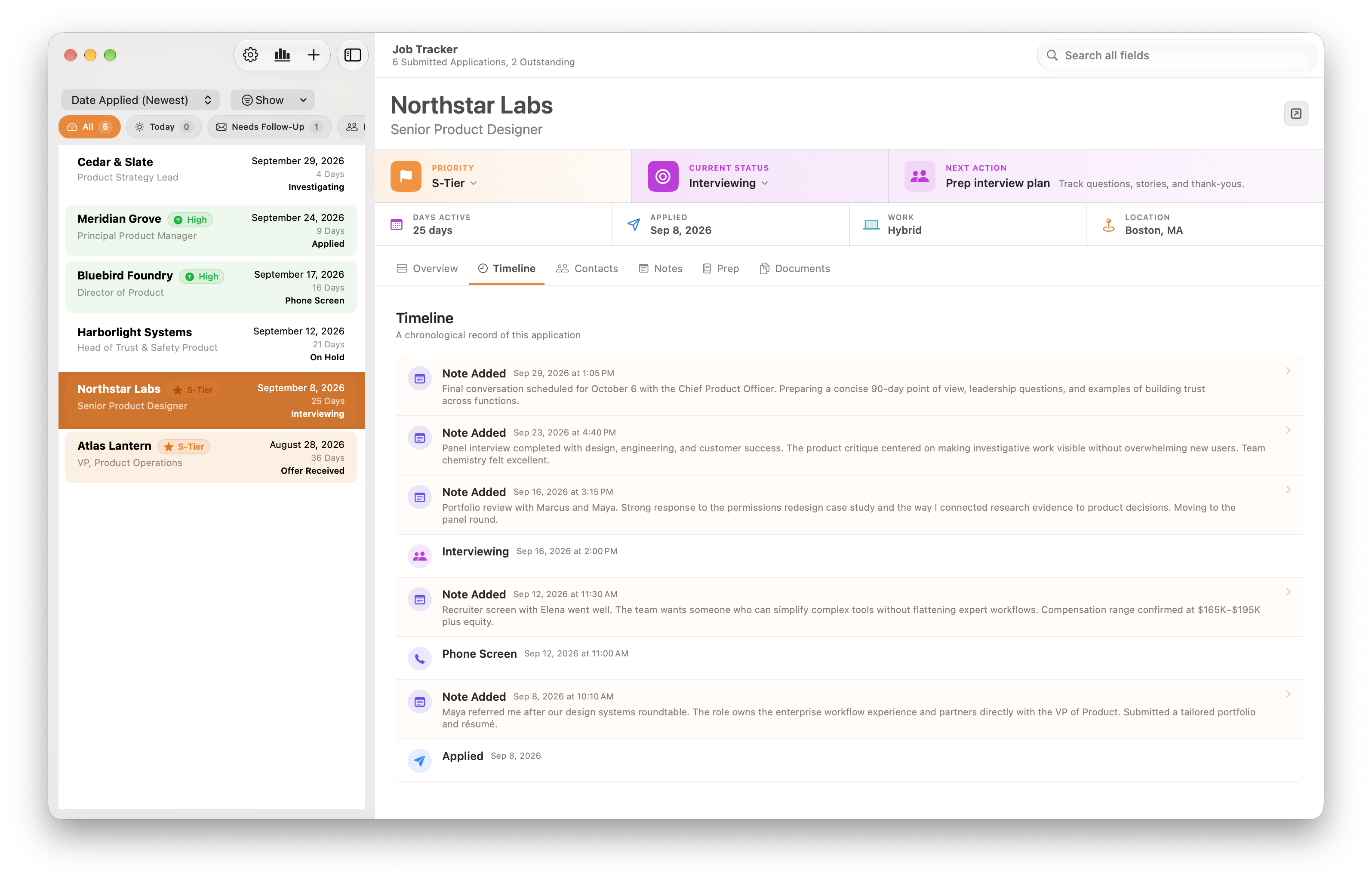
Every status change and every note lands on a dated timeline: applied, phone screen, interviewing, and the notes you wrote after each conversation. Weeks later, that record is what lets you walk into a final round and say what the panel told you in round two without guessing.
Notes have a tab of their own as well, and documents keep the role brief, your tailored résumé, and an offer checklist with the application.
How a round actually goes
The prep, the people, and the history aren’t three separate habits. They’re the same loop, once per round.
-
01The invitation arrives
Open the application and set the status, such as Phone Screen or Interviewing. Add whoever you’re meeting to Contacts, with their role, so the names in the calendar invitation mean something.
-
02The night before
Read the timeline from the bottom up: what the recruiter said about the range, what the panel pushed on, what you promised to send. Then go to Prep and sharpen the pitch, pick the two STAR stories that fit this panel, and choose your questions.
-
03Right after the call
Write the note while you still remember the wording. What they asked, what landed, what they seemed worried about, and anything you owe them. That note is the first thing you’ll read before the next round.
-
04The follow-up
Set the next action on the application, such as sending a thank-you or chasing a decision. The Needs Follow-Up and Today filters in the sidebar collect those across every role, so you work from a list instead of from memory.
Your notes stay on your Mac
Interview notes are candid by nature: what a manager said about their team, what you think of the offer, what you’d need to say yes. Job Tracker keeps all of it on your Mac, with no account to create, no sync, no analytics, and no tracking. Backups keep your history safe. The privacy policy has the details. Tracking your search in a spreadsheet today? See how Job Tracker compares.
Questions, answered.
Something else on your mind? Ask on the support page and I’ll reply personally.
What interview prep can I keep in Job Tracker?
Your pitch for the role, why this company, STAR stories for situation, task, action, and result, and the questions you want to ask about expectations, team health, strategy, and risks. It’s all saved on the application, so you can reread it before each round.
Does Job Tracker remind me about follow-ups?
Job Tracker keeps a next action on every application and has follow-up views, including a Needs Follow-Up filter and a Today filter, so the replies you owe are a click away rather than something you have to remember.
Is my interview data private?
Yes. Job Tracker stores everything on your Mac. There’s no account, no analytics, and no tracking, and LittleApps4U cannot see what you write. Backups keep your history safe.
How much does Job Tracker cost?
As of November 2026, Job Tracker is $4.99 USD, a one-time purchase on the Mac App Store. There is no subscription. It requires macOS 26.5 or later.
Can Job Tracker import a spreadsheet?
No. Job Tracker doesn’t import or export CSV files. You add applications in the app, and it keeps backups of your data on your Mac.
$4.99, one-time purchase · No account needed · macOS 26.5 or later
Price as of November 2026. See the rest of Job Tracker: applications, follow-ups, documents, and statistics.